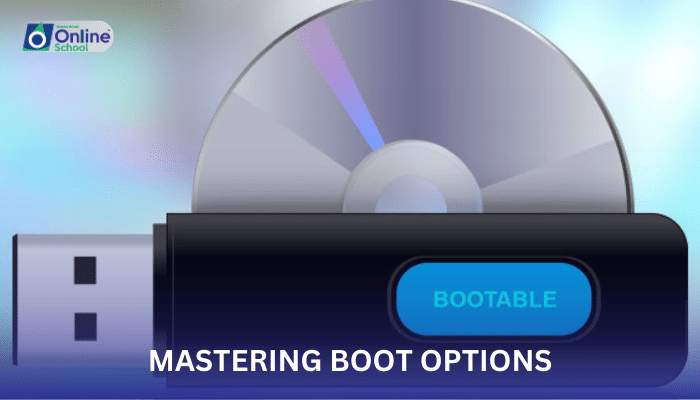
Lesson 05: Mastering Boot Options: Booting from Storage Media

Lesson 20/49 | Study Time: 30 Min
Lesson 05: Mastering Boot Options: Booting from Storage Media

Learning Outcomes


i. Comprehend the concept of booting and its role in initiating the computer's operating system


ii. Identify and differentiate between various methods of booting a computer from different storage media


iii. Understand the advantages and limitations of each booting method


iv. Gain the ability to troubleshoot boot-related issues by understanding common causes and potential solutions


Introduction


The process of booting, also known as starting up a computer, involves loading the operating system and essential software components into the main memory (RAM) from storage media. The choice of storage media and the booting method play a crucial role in the overall startup process and the ability to troubleshoot boot-related issues. In this lesson, we delve into the realm of booting options, exploring the different methods and their implications for computer operation and troubleshooting.


i. Common Booting Methods


Hard Drive Boot: This is the most common booting method, where the computer loads the operating system from the primary hard disk drive (HDD) or solid-state drive (SSD).


Optical Drive Boot: This method involves booting the computer from an optical disc, such as a DVD or CD, typically used for installing operating systems or running diagnostic tools.


Network Boot: Network booting allows the computer to load the operating system from a network server, often used in corporate environments for centralized management and software deployment.


Removable Media Boot: This method involves booting the computer from a removable storage device, such as a USB flash drive or external hard disk, particularly useful for troubleshooting or running portable operating systems.


ii. Advantages and Limitations of Each Method


Hard Drive Boot:


Advantages: Fast boot times, convenient for everyday use, no additional hardware required.


Limitations: Can be affected by hard drive failures or corrupted operating system files.


Optical Drive Boot:


Advantages: Useful for installing operating systems or running diagnostic tools.


Limitations: Requires an optical drive and the respective installation media.


Network Boot:


Advantages: Centralized management and software deployment, useful in corporate environments.


Limitations: Requires a network connection and compatible network infrastructure.


Removable Media Boot:


Advantages: Portability, useful for troubleshooting or running portable operating systems.


Limitations: May involve slower boot times compared to hard drive boot.


iii. Troubleshooting Boot-Related Issues


Common boot-related issues include:


Failed to Boot: The computer fails to start up or display any on-screen information.


Stuck in Boot Loop: The computer repeatedly restarts or remains stuck in the boot process.


Operating System Not Found: The computer cannot locate the operating system on the hard drive.


Troubleshooting these issues often involves checking hardware connections, verifying storage media integrity, and utilizing diagnostic tools to identify and resolve underlying problems.


Understanding the different booting methods, their advantages, and limitations provides students with a solid foundation for troubleshooting boot-related issues. By mastering these techniques, they can effectively address common boot problems and ensure the smooth operation of their computers.


Saboor Ali

Saboor Ali

Product Designer

Class Sessions

1- Lesson 01: Introduction to Computers 2- Lesson 02: Understanding Operating Systems 3- Lesson 03: Navigating the Operating System 4- Lesson 04: Essential Operating System Functions 5- Lesson 05: Working with Files and Folders 6- Lesson 06: Installing an Operating System 7- Lesson 01: The Brain of the Computer: The Central Processing Unit (CPU) 8- Lesson 02: Memory: The Storage for Information 9- Lesson 03: The Gates to Interaction: Input/Output Devices 10- Lesson 04: Connecting the Components: AGP, PCI, and IDE 11- Lesson 05: The Sata Revolution: Sata Interface & Cable 12- Lesson 06: Memory Expansion: Memory Slots and Their Usage 13- Lesson 07: Ports for Communication: Serial, Parallel, PS/2, USB, and HDMI Ports 14- Lesson 08: Enhancing Performance: Sound Cards, Video Graphics Cards, Modem Cards, and Network Cards 15- Lesson 09: Storage Revolution: SSD Cards and SSD HDDs 16- Lesson 01: The Essential Software: Defining Operating Systems 17- Lesson 02: Windows and Linux: Exploring Operating System Types 18- Lesson 03: Demystifying Icons: Understanding Basic Operating System Icons 19- Lesson 04: Windows Installation: A Step-by-Step Guide 20- Lesson 05: Mastering Boot Options: Booting from Storage Media 21- Lesson 06: Partitioning and Formatting: Preparing the Hard Drive 22- Lesson 07: Selecting the Right Drive: Choosing the Appropriate Drive for Installation 23- Lesson 08: Device Drivers: Installing Essential Software for Hardware Components 24- Lesson 09: File Management Essentials: Copying, Moving, Renaming, and Searching 25- Lesson 10: Personalizing Your Workspace: Customizing Desktop and Display Settings 26- Lesson 11: Deciphering File Extensions: Understanding File Types 27- Lesson 12: Unveiling Hidden Files: Managing Hidden and System Files 28- Lesson 13: Device Manager: Managing Hardware Devices 29- Lesson 14: Task Manager: Monitoring System Performance 30- Lesson 15: Commanding the System: Utilizing the Command Prompt 31- Lesson 16: Understanding OS Updates and Upgrades: Distinguishing between Routine Updates and Major Upgrades 32- Lesson 17: Keeping the OS Current: The Process of Updating the Operating System 33- Lesson 18: Monitoring Storage Capacity: Checking Free Space on the Hard Drive 34- Lesson 19: Online OS Updates: Checking for Available Updates Online 35- Lesson 20: Booting Options: Booting from Storage Media or Internet 36- Lesson 01: Navigating Applications with Ease: Mastering Menus, Toolbars, and Dialog Boxes 37- Lesson 02: Undo: Restoring Mistakes with a Simple Click 38- Lesson 03: MS Office: A Suite of Essential Productivity Tools 39- Lesson 04: MS Word: The Wordsmith's Toolkit 40- Lesson 05: PowerPoint: Captivating Presentations Made Simple 41- Lesson 06: Excel: Mastering Data with Spreadsheets 42- Lesson 07: Mastering Font Styles and Sizes in MS Word 43- Lesson 08: Formatting Paragraphs for Enhanced Readability 44- Lesson 09: Enhancing Text with Inserting and Editing Tools 45- Lesson 10: Minimizing and Maximizing the Ribbon for a Streamlined Experience 46- Lesson 12: Adjusting Margins for a Tailored Document Layout 47- Lesson 13: Hyperlinking: Connecting Information across Documents and Websites 48- Lesson 14: Embellishing Documents with Watermarks 49- Lesson 15: Managing Documents: Effectively Organizing and Saving Files